> ## Documentation Index
> Fetch the complete documentation index at: https://help.yournewdoor.com/llms.txt
> Use this file to discover all available pages before exploring further.
# Welcome
> The YourNewDoor.com Design Studio is your complete guide to creating doors, managing projects, and completing orders on YourNewDoor.com
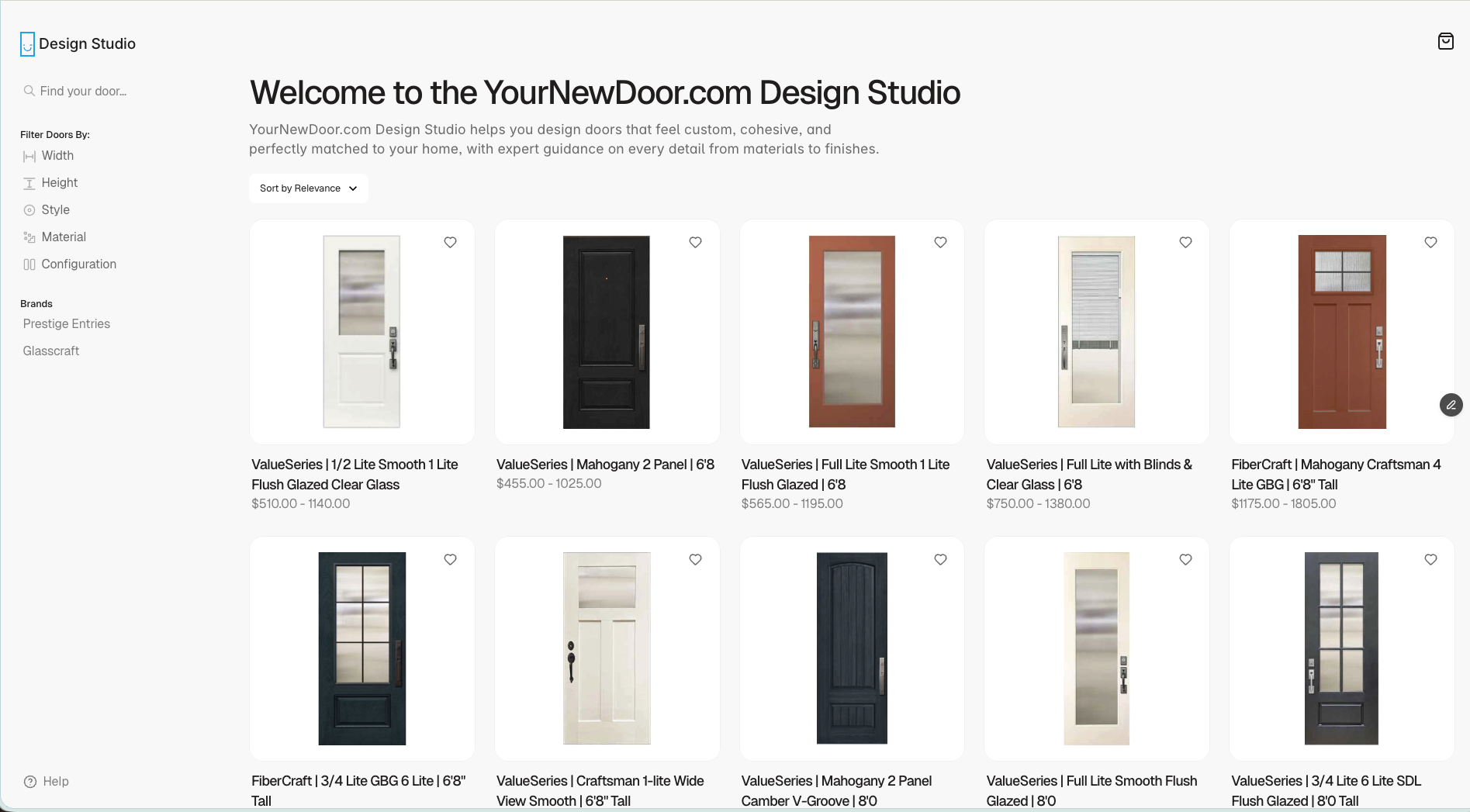 ## Welcome to the YourNewDoor.com Design Studio
The **Design Studio** is your all-in-one workspace for building beautiful door configurations, organizing client projects, and submitting production-ready orders — all from a single, streamlined platform.
Whether you're a sales rep quoting a new customer, a designer speccing out a custom entry door, or an ops team member pushing an order through to fulfillment, this documentation hub has everything you need.
New here? Start with [**Design Studio Basics**](/getting-started) to get familiar with the platform before diving into specific workflows.
***
## What you can do
Build door designs step-by-step — choose styles, materials, colors, glass, and hardware.
Organize, filter, and collaborate on door projects across your entire pipeline.
Turn approved designs into accurate, production-ready orders ready for fulfillment.
***
## Getting started
This hub is designed for everyone who touches the door sales and fulfillment process:
* **Sales reps** — quickly quote and configure doors for customers
* **Designers** — build and refine custom door specifications
* **Operations teams** — validate and submit orders for production
* **Managers** — review project pipelines and track order status
Everything in the Design Studio revolves around three workflows:
1. **Creating a door** — Configure a door from scratch or from a saved template, selecting all style and hardware options.
2. **Managing a project** — Organize designs by customer or job, track statuses, and collaborate with your team.
3. **Completing an order** — Review specs and pricing, run through the readiness checklist, and submit for production.
Use the **left-hand navigation** to browse sections, or use the **search bar** at the top to jump directly to what you need.
Each section starts with an overview page, followed by detailed step-by-step guides. Look for `Note`, `Warning`, and `Tip` callouts throughout — they highlight important details you won't want to miss.
* Make sure you have the correct role and workspace access before starting (see [Roles & Permissions](/basics/roles)).
* Familiarize yourself with key terms like **project**, **variant**, **preset**, and **order** in the [Platform Overview](/basics/overview).
* If you run into issues, check [Common Issues & Fixes](/faq/issues) before reaching out to support.
***
## Documentation structure
Get oriented with the platform — learn key terms, understand user roles, and confirm your workspace access is set up correctly.
**Pages:** Platform Overview · Roles & Permissions · Environment & Access
Go from a blank canvas to a fully specified door design. Start a new project, configure every option, work with templates, and review pricing.
**Pages:** New Door Project · Door Configuration · Templates & Presets · Pricing & Options
Keep your pipeline clean and organized. Learn how to use statuses, tags, filters, and collaboration tools to manage every project from quote to approval.
**Pages:** Project List & Views · Statuses & Lifecycle · Tags, Filters & Search · Collaboration & Notes
Submit clean, error-free orders every time. Run through the readiness checklist, handle revisions, and connect to downstream systems.
**Pages:** Order Readiness Checklist · Submitting Orders · Revisions & Change Orders · Exports & Integrations
***
## Explore by section
### Design Studio Basics
Learn what the Design Studio is and how it fits into the YourNewDoor.com ecosystem.
Understand what each team role can see and do inside the platform.
Log in, switch workspaces, and confirm you have the right access level.
### Creating Doors
Start a new door design, attach it to a customer or job, and set base parameters.
Configure size, handing, material, style, color, glass, and hardware options.
Create and reuse standard configurations for faster, more consistent quoting.
See how pricing updates live as you configure and how to apply discounts or fees.
### Sorting & Managing Projects
Customize views, sort columns, and save filters for fast access to your pipeline.
Move projects through each stage so everyone sees accurate, up-to-date progress.
Use tags and filters to instantly surface the right project at the right time.
Add comments, internal notes, and attachments to keep all context in one place.
### Completing Orders
Step-by-step checklist to validate specs, pricing, and install details before submitting.
Learn how to submit an order and what happens on the production side after you do.
Update existing orders safely if a customer changes their mind after submission.
See how orders are shared with vendors, installers, or connected external systems.
***
## Advanced workflows & FAQs
Learn keyboard shortcuts, cloning patterns, and other time-savers that experienced Design Studio users rely on to move faster through their workflow.
Quick fixes for the most common problems: missing configuration options, incorrect pricing calculations, orders stuck in a status, and more.
Browse answers to frequently asked questions about the Design Studio, data management, team permissions, and platform integrations.
***
New to the Design Studio? Start here for a full platform orientation.
Already familiar with the platform? Go straight to building your first door design.
## Welcome to the YourNewDoor.com Design Studio
The **Design Studio** is your all-in-one workspace for building beautiful door configurations, organizing client projects, and submitting production-ready orders — all from a single, streamlined platform.
Whether you're a sales rep quoting a new customer, a designer speccing out a custom entry door, or an ops team member pushing an order through to fulfillment, this documentation hub has everything you need.
New here? Start with [**Design Studio Basics**](/getting-started) to get familiar with the platform before diving into specific workflows.
***
## What you can do
Build door designs step-by-step — choose styles, materials, colors, glass, and hardware.
Organize, filter, and collaborate on door projects across your entire pipeline.
Turn approved designs into accurate, production-ready orders ready for fulfillment.
***
## Getting started
This hub is designed for everyone who touches the door sales and fulfillment process:
* **Sales reps** — quickly quote and configure doors for customers
* **Designers** — build and refine custom door specifications
* **Operations teams** — validate and submit orders for production
* **Managers** — review project pipelines and track order status
Everything in the Design Studio revolves around three workflows:
1. **Creating a door** — Configure a door from scratch or from a saved template, selecting all style and hardware options.
2. **Managing a project** — Organize designs by customer or job, track statuses, and collaborate with your team.
3. **Completing an order** — Review specs and pricing, run through the readiness checklist, and submit for production.
Use the **left-hand navigation** to browse sections, or use the **search bar** at the top to jump directly to what you need.
Each section starts with an overview page, followed by detailed step-by-step guides. Look for `Note`, `Warning`, and `Tip` callouts throughout — they highlight important details you won't want to miss.
* Make sure you have the correct role and workspace access before starting (see [Roles & Permissions](/basics/roles)).
* Familiarize yourself with key terms like **project**, **variant**, **preset**, and **order** in the [Platform Overview](/basics/overview).
* If you run into issues, check [Common Issues & Fixes](/faq/issues) before reaching out to support.
***
## Documentation structure
Get oriented with the platform — learn key terms, understand user roles, and confirm your workspace access is set up correctly.
**Pages:** Platform Overview · Roles & Permissions · Environment & Access
Go from a blank canvas to a fully specified door design. Start a new project, configure every option, work with templates, and review pricing.
**Pages:** New Door Project · Door Configuration · Templates & Presets · Pricing & Options
Keep your pipeline clean and organized. Learn how to use statuses, tags, filters, and collaboration tools to manage every project from quote to approval.
**Pages:** Project List & Views · Statuses & Lifecycle · Tags, Filters & Search · Collaboration & Notes
Submit clean, error-free orders every time. Run through the readiness checklist, handle revisions, and connect to downstream systems.
**Pages:** Order Readiness Checklist · Submitting Orders · Revisions & Change Orders · Exports & Integrations
***
## Explore by section
### Design Studio Basics
Learn what the Design Studio is and how it fits into the YourNewDoor.com ecosystem.
Understand what each team role can see and do inside the platform.
Log in, switch workspaces, and confirm you have the right access level.
### Creating Doors
Start a new door design, attach it to a customer or job, and set base parameters.
Configure size, handing, material, style, color, glass, and hardware options.
Create and reuse standard configurations for faster, more consistent quoting.
See how pricing updates live as you configure and how to apply discounts or fees.
### Sorting & Managing Projects
Customize views, sort columns, and save filters for fast access to your pipeline.
Move projects through each stage so everyone sees accurate, up-to-date progress.
Use tags and filters to instantly surface the right project at the right time.
Add comments, internal notes, and attachments to keep all context in one place.
### Completing Orders
Step-by-step checklist to validate specs, pricing, and install details before submitting.
Learn how to submit an order and what happens on the production side after you do.
Update existing orders safely if a customer changes their mind after submission.
See how orders are shared with vendors, installers, or connected external systems.
***
## Advanced workflows & FAQs
Learn keyboard shortcuts, cloning patterns, and other time-savers that experienced Design Studio users rely on to move faster through their workflow.
Quick fixes for the most common problems: missing configuration options, incorrect pricing calculations, orders stuck in a status, and more.
Browse answers to frequently asked questions about the Design Studio, data management, team permissions, and platform integrations.
***
New to the Design Studio? Start here for a full platform orientation.
Already familiar with the platform? Go straight to building your first door design.