
Open your account menu
On a computer, select your photo or initials at the bottom of the left rail. The menu shows:- Your photo (or initials), name, email and role. If you have more than one role, the badge shows a +1 (or more). Hover over it to see them all.
- My profile: opens your Profile page.
- Settings: only shows if your role can open Settings.
- Sign out
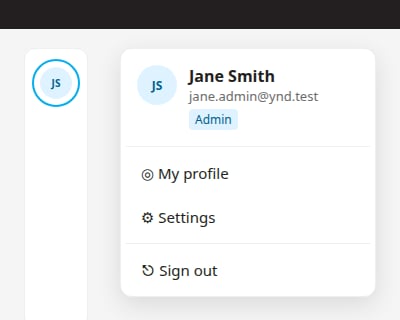
Sign out is in the account menu (or More on a phone). It’s no longer in the top bar next to your email.
Sign out
Open the account menu (or More on a phone) and choose Sign out. You’re signed out right away. There’s no confirmation step.Update your profile
Your Profile page is at Settings → Profile (/settings/profile). Every role can open it, even if you can’t open the rest of Settings.
1
Open your profile
Open the account menu and choose My profile.
2
Edit your details
You can change:
- Full name (required, up to 80 characters)
- Preferred name (optional, up to 80 characters). If you set one, it’s the name that shows in your account menu.
- Title (optional, up to 60 characters), for example “Senior Door Expert”
- Mobile phone (optional). Use a 10-digit US number.
- Timezone. The timezone every time in Field Ops shows in. See Set your timezone.
3
Save
Select Save changes. You’ll see “Profile saved.” To undo your edits before saving, select Discard changes.
Set your timezone
You can pick your own timezone on your Profile page. Field Ops then shows every time in that timezone: appointment and consult times, the schedule and calendars, “today” on your home and the map, photo and file upload times, invoices, forms, texts and calls, and reporting dates.1
Open the Timezone field
On your Profile page (My profile in the account menu), select the Timezone box. Under it, Right now: shows the current time in the timezone that’s picked.
2
Pick a timezone
Common US timezones are listed first: Central (Chicago), Eastern (New York), Mountain (Denver), Arizona (no daylight saving), Pacific (Los Angeles), Alaska and Hawaii. Below them is All timezones. Type in Search timezones to find a city, for example “Tokyo”.
3
Save
Select Save changes. You’ll see “Profile saved.” and the times on your screens switch to the new timezone.
If you never pick a timezone, Field Ops uses company time, Central (America/Chicago). It doesn’t use your computer’s or phone’s timezone. Your timezone only changes how times look to you; it doesn’t move any appointment.
What stays on Central time
A few company rules stay on Central time no matter which timezone you pick:- The booking day of 7:00 AM–8:00 PM CT. Suggested consult times are still picked inside that window, but they’re shown to you in your timezone.
- Quiet hours for texts.
- How long a proposal’s price is held (it ends at the end of the day, Central).
- Pages customers see without signing in, like a proposal or payment link.
Change your photo
1
Upload a photo
On your Profile page, select Upload photo. Use a JPG, PNG or WebP file up to 5 MB and at least 200×200 pixels. iPhone HEIC photos aren’t supported.
2
Crop it
Drag the photo to move it, and use the slider or the + and − buttons to zoom. Then select Use photo. Select Cancel to stop without changing your photo.