
Home: Upcoming
The Upcoming card on the Desk home (and the installer’s Field home) shows what’s coming up.- Day view (default): up to 5 appointments with the time (in your profile timezone; CT if you haven’t picked one), a colored stage bar, the customer name, and the type and city. More than 5 shows “+N more on Schedule”.
- Week view: Monday–Sunday counts with the week’s appointments listed below. Tap a day to filter to it; tap again to clear.
- Go to Schedule opens the full Schedule.
- Office views follow the market picked on the Desk (or All markets). Installers and CSRs see only their own.
Home: My action items
When you have open tasks, the My action items card at the bottom of Home lists the ones assigned to you, grouped into Overdue, Today and This week. Use + Task to add one and View all for the full list. See My action items and tasks.Global search
Click the magnifying glass in the left rail, or press Cmd-K (Mac) / Ctrl-K (Windows). Search finds customers, jobs, bookings and leads. Who can open search still depends on your role. Customer results show the full formatted phone (for example(214) 555-4821), the same for every role that can search. The customer picker used when booking or linking a customer does the same for phones; emails there stay masked. Appointment flyouts still show only the last 4 digits of a phone. Click See all for the full list.
Sales Pipeline
At the top of Sales is a toggle with three views: Board, List and Open estimates.Board (Kanban)
Sales opens on the Board every time. Columns are stages: No consult yet, Consult, Site assessment, Pre-job and Dispatch.- Each customer gets one card. A customer with several consults shows “N consults · Next …”, with Show all N consults.
- Upcoming consults show Next with the date and time in your profile timezone (CT if you haven’t picked one).
- Live cards also show the customer’s booking tags as chips (for example No response). Hover them to see Tags: …. The same chips appear on sales-call schedule rows and on linked estimates.
- Empty columns say “No customers here yet”.
- On a phone, swipe sideways; the next column peeks in.
Customers hidden from the Board
An admin can hide a customer from the Board, for example an old imported card or a test customer. Hiding only takes the card off the pipeline. Nothing is deleted.- A hidden customer doesn’t show on the Board or in List.
- Everything else stays the same: search, the customer page and flyout, Open estimates, Texts, calls, photos, invoices, proposals, jobs, Schedule and Reporting all still show them.
- There’s no hide or unhide button in Field Ops. If a customer you expect is missing from the Board, search for them; if they need to come back, ask an admin to unhide them, and the card returns to its usual column.
Move a card to another stage
Admins, the Owner, executives and Door Experts can move a customer’s card to a different column. Everyone else sees the Board but can’t move cards.- Mouse: drag the card to the new column. The drag starts once you move a few pixels, so a normal click still opens the flyout.
- Phone or tablet: press and hold the card for about a quarter of a second, then drag. A quick swipe still scrolls the board sideways.
- Keyboard: use the Move to… menu on the card and pick the stage.
A manual move holds only while the customer’s records still point to the stage they were in when you moved them. When something real changes, like a new booking, the card follows the records again. Moving a card back to the column the records give clears your manual move.
- “Board changed, refresh” means the customer’s stage changed since you loaded the page (for example, someone booked an appointment). Refresh and try again.
- “Not available yet” means moving cards hasn’t been switched on yet. The board still shows each customer’s stage from their records.
Customer flyout
Click a customer card on the Board to open the customer flyout on the side of the screen. Along with the customer’s details, it shows all of their estimates, so you don’t have to leave the pipeline to check them. Under the contact details, a Source row shows where the customer came from and, for website leads, which form they filled out first, for example Source Website form · Project upload. If they later filled out a different form, it’s added at the end, like (latest: Warranty claim). The row is read-only and looks the same for every role. See Where a lead came from. The customer’s tags in the flyout header use the shared tag picker: click + Add tag, search the company’s tags, check or uncheck one, or create a new tag as you type. It replaces the old free-text Add tag… box, and a tag you create here shows up in the picker everywhere else. See Add or create a tag. The appointment block at the top of the flyout also lists saved estimate versions as outline buttons (version name, or Estimate / Estimate vN). They open that exact version in the estimate builder and do not show prices. The detailed Estimates list below is unchanged. See Reopen a saved estimate. Estimates shows a count and one row for every saved estimate version on the customer’s opportunities, newest first. Drafts, sent and signed estimates all show, so nothing you saved goes missing. Each row shows:- The estimate’s title, a status badge and the version number, like v2. The newest version of each opportunity shows its proposal’s status (or Draft if no proposal has gone out). Older versions show Draft.
- The estimate’s total, if your role can see it (see the table below).
- Open, which opens that exact version in the estimate builder with all of its saved lines, and closes the flyout. See Reopen a saved estimate.
The flyout no longer has an Openings section. You’ll find a customer’s doors on each estimate instead. The appointment panel on the Schedule still shows Openings, because field crews there don’t see estimates.
List
List shows the same customer cards as the Board, laid out as a grid instead of columns.Open estimates
Open estimates lists every estimate that’s still waiting on the customer, so you can see what to follow up on.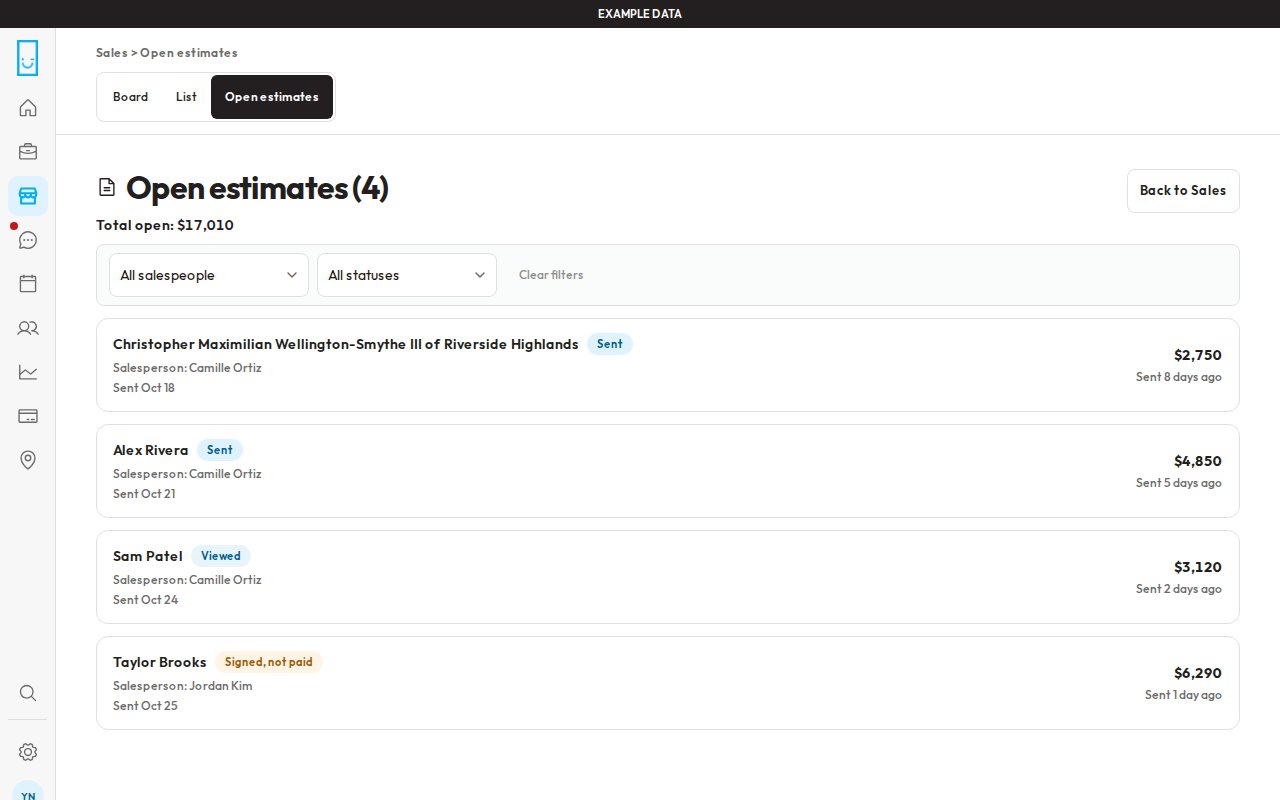
Open estimates on desktop (example data)
- Sent: sent to the customer but not opened yet (this also covers estimates that are active, expiring soon or extended).
- Viewed: the customer has opened it.
- Signed, not paid: signed or accepted, but the $99 reservation fee isn’t fully paid yet. Once the $99 is paid, it drops off.
- Salesperson: All salespeople, My estimates, Unassigned, or a specific person. The list includes Door Experts, CSRs and Design concierge.
- Status: All statuses, Sent, Viewed or Signed, not paid.
- Clear filters resets both (it’s greyed out when nothing is filtered).
If you have nothing open, you’ll see “You don’t have any open estimates.”
CSRs and Design Concierges
CSRs and Design Concierges can look at every estimate for any customer, but not from this list. Their Open estimates view is always empty and says “Estimates live on each customer. Search a customer to open theirs.” with a Search customers button. Search for the customer, open their customer page, and the estimates are in the Proposals card. See Proposals on the customer page.
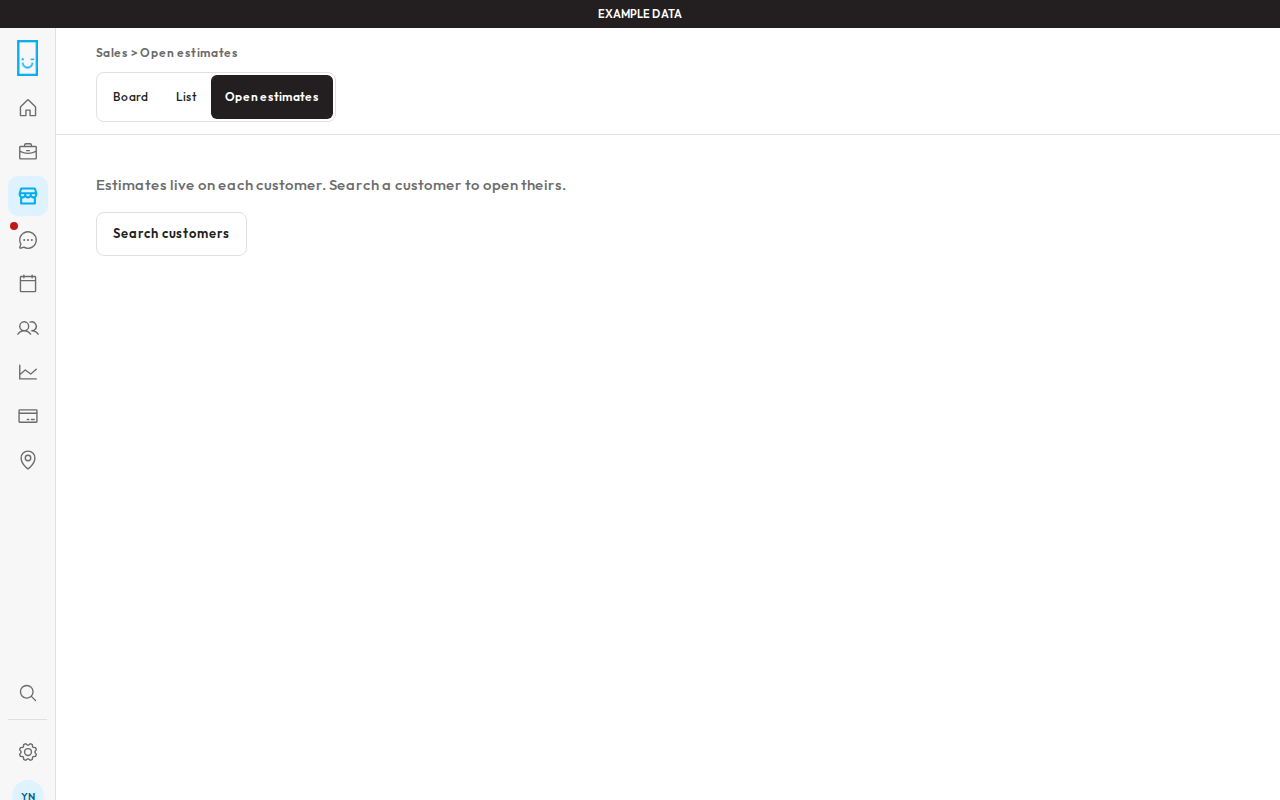
Open estimates for a CSR or Design Concierge
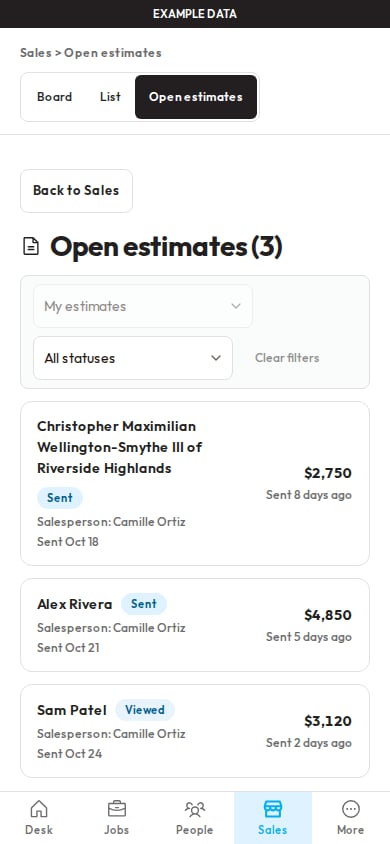
A Door Expert's view on a phone (example data)
Duplicate customers
When you book with Quick Create, or a website form comes in, Field Ops checks for an existing customer by email, then phone, before creating a new one.Gallery
The Gallery (/gallery) holds door images. You can star images, download them, copy a link, or select several and Share starred images as a concept set. To remove an item, use Delete on the card (or the three-dot menu) and confirm.