
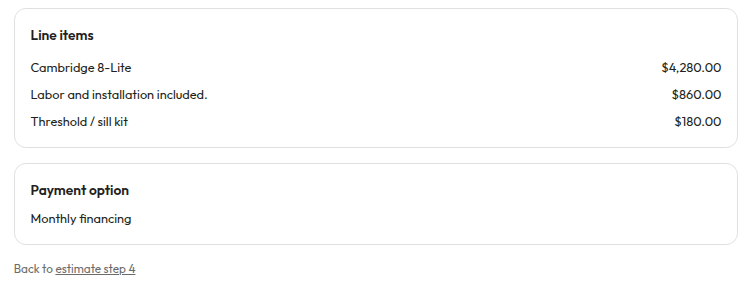
Workbench opened from an estimate, with lines and payment option filled in (example data)
Pricing preview and customer link in Workbench
Workbench shows the same three payment cards the customer sees on their proposal link, in the same order:
The cards and the Total row update as soon as you change a line, so they always match what the customer will see. Click a card to pick the payment option the customer’s link opens with.
Two buttons sit next to each other in the Workbench header:
- Preview customer proposal publishes the current version and opens the customer’s page (
/p/…) in a new tab, so you can see exactly what they’ll see. - Copy proposal link publishes the current version and copies the customer link. You’ll see “Customer proposal link copied.” Paste it into a text or email to the customer yourself.
Door Experts and Design Concierges can only use these buttons on proposals they own or are assigned to. Other roles that can send proposals can use them on any proposal. The buttons don’t show on read-only proposals, and a signed proposal can’t be republished this way. Use Make a revision instead.
Who sees the totals in Workbench
Door Experts, Design Concierges, CSRs, admins, the Owner, managers, dispatchers, PMs and executives all see the full money picture in Workbench:- the price on each line
- each opening’s subtotal
- the Subtotal and Total rows
- the dollar amounts on all the payment cards, including the half-now, half-later split
This only changes Workbench. A Design Concierge who opens an estimate still sees prices as a dash, and still doesn’t get the priced PDF download. See Who sees prices on an estimate.
Next
Set line items and the pay-in-full discount
Use price book or custom lines and set the pay-in-full discount.
Proposals: all tasks
Every task for this area.