
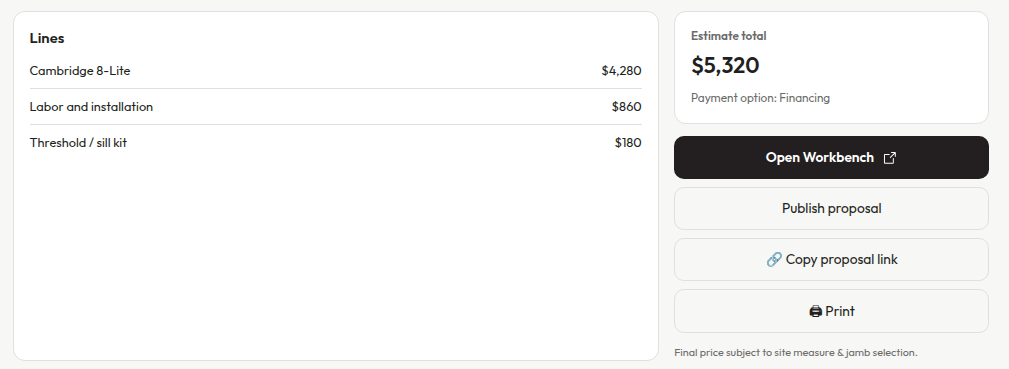
Step 4 with Open Workbench, Publish proposal and Copy proposal link (example data)
- Publish proposal publishes the proposal from this estimate. You’ll see Proposal published. Once it’s published, the button reads Republish proposal. Use it after you change the estimate.
- Copy proposal link (or Copy customer link at the top) publishes the proposal if needed, then copies the customer’s proposal link. You’ll see Customer proposal link copied.
- Open Workbench makes sure the proposal exists, fills it with the estimate’s lines and payment option, and opens it. It never opens a blank proposal. It stays the filled accent primary button on this screen.
- Approve (outline, same visual weight as the other outline controls) records a verbal yes on a draft or unsent estimate without opening Workbench. See Approve without sending (phone close).
- Send proposal saves the estimate to its proposal and emails it straight to the email on the customer’s record. You stay on the estimate. While it works the button reads Sending…, and when the email is on its way you’ll see a green line under the buttons like Sent to [email protected] at Nov 5, 2026 · 10:56 AM CT. Door Experts, admins, executives and the Owner see this button.
- Go to invoice shows once the proposal is published. It opens the proposal’s invoice in the same tab so you can take a card by phone. See Go to the invoice to take a card.
Publish proposal, Copy proposal link and Approve don’t email or text the customer. You send the link yourself, or use Send proposal. If email sending is turned off, the Send step tells you to use Copy link instead.
- Enter a valid email address on the customer record before sending. The customer has no email on file. Add it on the customer page and try again.
- The proposal email was not sent. Check the customer email address and try again. The address on file isn’t a real email address.
- Network error. Try again. The connection dropped. Click Send proposal again.
Approve without sending (phone close)
When a customer says yes on a phone close, you can Approve a draft or unsent estimate right on step 4. You don’t need to open Workbench, and nothing is emailed or texted to the customer. Who sees Approve: Door Experts, admins and the Owner. CSRs, managers, executives and PMs don’t get this step-4 button (the server refuses). Those roles still use Workbench Accept on the customer’s behalf when that path is available for them.1
Click Approve on step 4
The outline Approve button sits with the other step-4 actions. Open Workbench stays available next to it as the filled primary button if you still need Workbench.
2
Complete the staff-accept dialog
You get the same accept dialog as Workbench: pick how the customer will pay: Financing, 50% deposit / 50% on completion or Pay in full. Nothing is selected for you, so you have to choose one, then confirm.
3
Confirm
After a successful confirm, the estimate is accepted. If the draft didn’t have a snapshot yet, Field Ops publishes and snapshots it without sending. The signed estimate stays locked afterward.
After the estimate is approved
Once an estimate is approved, step 4 shows an Approved box instead of the buttons you use before approval. That’s true whether the office approved it (Approve on step 4 or Accept on customer’s behalf in Workbench) or the customer signed their link, and it’s the same for every role. These buttons no longer show on an approved estimate:- Approve
- Publish proposal and Republish proposal
- Send proposal
- Copy proposal link, and Copy customer link at the top of the page
- Accept on customer’s behalf in Workbench
The box shows right after you click Approve, so you don’t need to refresh. If another tab still shows the old buttons, Field Ops refuses them and nothing changes: a second approval doesn’t go through, and Publish proposal or Copy proposal link shows This proposal is signed. Make a revision to change the offer. To change an approved estimate, use Make a revision: it warns you, makes a new copy, and lets you approve it or send it again. See Change an accepted estimate.
Go to the invoice to take a card
Right after you approve, you can take the card in the approve dialog itself. See Take a payment on the same call. Any other time the customer wants to pay on the call, click Go to invoice on step 4 (or in the proposal’s header) and take the card on the invoice. See Take a card by phone. Who sees Go to invoice: Admins, the Owner, Managers, Executives, PMs, CSRs and Door Experts, once the proposal is published. Dispatchers, Design Concierges and installers don’t see it. Go to invoice never creates an invoice. If there isn’t one yet, you land on a page that says why:
Use Open invoices → on that page to go to the invoices list. When the proposal has more than one invoice, Go to invoice opens the one with a balance due, the final invoice before the deposit.
How unassigned lines are handled
Publishing never gets stuck because lines aren’t on an opening:- No openings yet: Field Ops creates Opening 1 and puts every line on it.
- One opening: any labor, hardware or component lines without an opening go on that opening.
- Two or more openings: you choose. The error banner at the top lists each unassigned line with a Pick opening… menu, so you can assign them right there and publish again.
- Estimate total doesn’t match the published lines. Refresh and try again.
- This proposal is signed. Make a revision to change the offer. See Proposals.
- Add at least one line before previewing the proposal.
- Opportunity has no customer — cannot create a proposal yet.
- Pick which opening each item goes on before publishing. This appears at the top of the page only when the opportunity has two or more openings and some labor, hardware or component lines aren’t assigned to one. Use the Pick opening… menu next to each listed line, then publish again.
- Couldn’t save Opening 1. Try again. Field Ops tried to create Opening 1 for you and the save failed.
- Email sending is turned off right now. Use Copy link instead. This appears when you click Send while email sending is off. Copy the customer link and send it yourself.
Next
Start an estimate
Open a new estimate from a customer, an opportunity or the Sales Board.
Price book: all tasks
Every task for this area.