
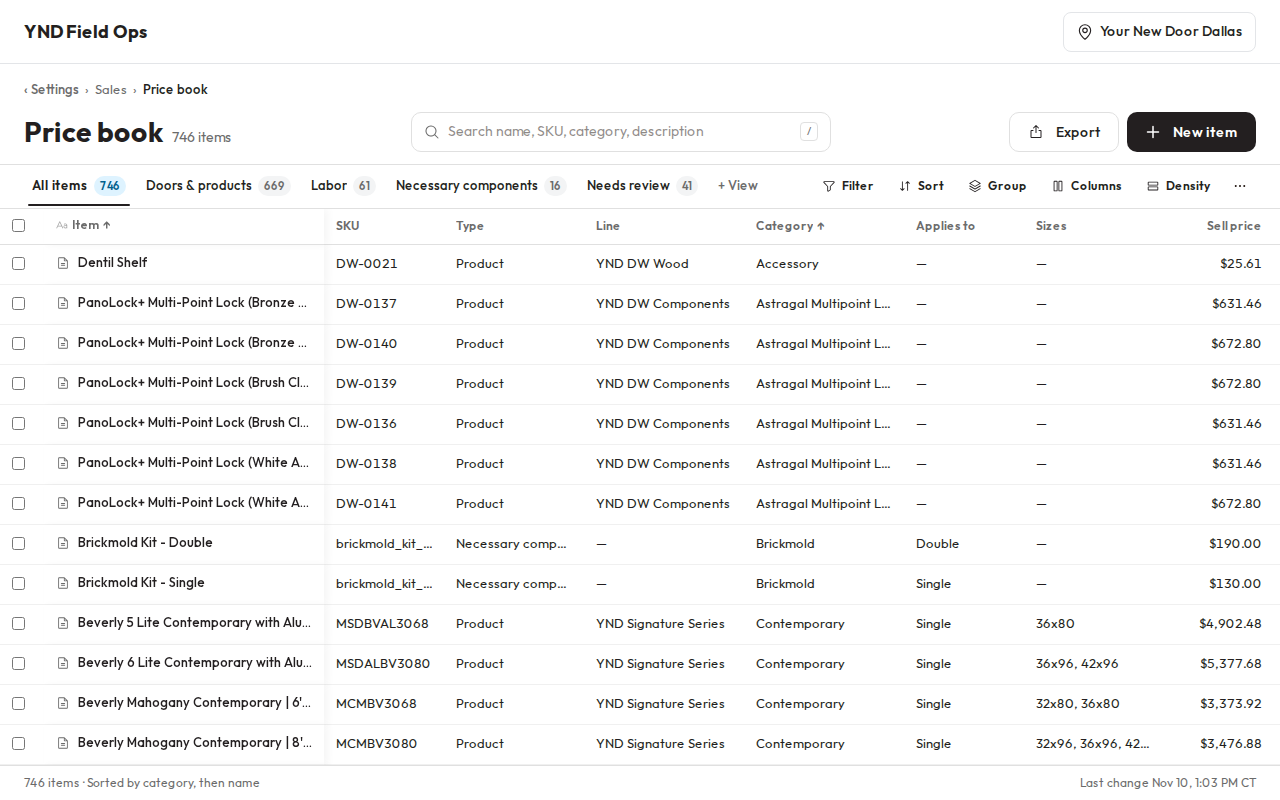
Find an item
1
Pick a view
The tabs across the top are views: All items, Doors & products, Labor, Necessary components and Needs review. Each tab shows how many items it holds. Needs review lists items the price book import flagged for a check.
2
Search
Type in Search name, SKU, category, description. The table narrows as you type and highlights the match. Press / to jump to the search box, and Esc to clear it.
3
Click a row
The item opens in a panel on the right, and the table stays in view behind it. Use the arrows at the top of the panel to step to the previous or next item, and Esc or × to close it.
Filter, sort and group
The tools on the right of the view tabs change the table you’re looking at:
Click + View to save what you set up as your own view, with a name you pick. It shows as a new tab. Changes you make to a view are kept for you in this browser, so it looks the same next time you open the price book on this computer.
Change an item
You need to be an Admin, the Owner, an Executive, a Manager or a PM to change an item.1
Open the item
Click its row in the table.
2
Change the fields
On the Details tab you can change Sell price and Category, and Supplier on doors and products. The bottom of the panel counts your unsaved changes.
3
Click Save changes
The table updates right away. Click Cancel to leave without saving. If you close the panel with unsaved changes, Field Ops asks “Discard unsaved changes?” first.
Who sees costs
Admins, the Owner, Executives, Managers and PMs see Cost and Margin columns, and Tech pay on labor. CSRs see sell prices only: no cost or margin columns and no edit fields. Installers can’t open the price book.Export to a spreadsheet
Tick the boxes next to the rows you want, then click Export in the bar that appears at the bottom. With nothing ticked, Export at the top of the page downloads every item in the current view. You get a CSV file with each item’s name, SKU, type, line, category and sell price. Costs are never included. Tick the box in the header row to select every item that matches your filters. Click × on the bar, or press Esc, to clear the selection.On a phone
On a phone the price book shows as a list of cards instead of a table. Tap Filter to pick the type, line, status and Applies to, and choose how to sort. Search works the same way.Next
Filter the price book
Narrow the doors you see while you build an estimate.
Price book: all tasks
Every task for the price book and estimates.